Explained
A Practical Guide on How to Modify a Read Only PDF
So, you've hit a wall with a PDF. We've all been there. You need to make a simple change, but the file is locked down tighter than a drum. Before you can get anywhere, you have to figure out why it’s read-only.
The solution isn't one-size-fits-all. The right move depends entirely on whether you're dealing with permission restrictions, a full-blown password lock, or just a scanned image that isn't real text.
Figuring Out Why Your PDF Is Read-Only
Putting in a few seconds to diagnose the problem upfront will save you a massive headache later. Trying to run a password cracker on a simple scanned image is a waste of time, just like an OCR tool won't help you with an encrypted file.
Let's break down the usual suspects.
The Two Main Types of Security Locks
Most of the time, a locked PDF falls into one of two buckets.
First, you have files with an owner password, sometimes called a permissions password. You can open and read these just fine, but the moment you try to edit, print, or copy text, you're blocked. This is super common for things like official forms or company reports where the creator needs to keep the document's original state intact.
The second type is locked with a user password. This one is more serious—it encrypts the whole document. You can't even peek at the contents without knowing the secret key. This is the go-to for protecting sensitive or confidential information.
The Image-Based PDF Dilemma
Then there's the third common scenario, which isn't really a security lock at all. Many PDFs, especially ones from a scanner, are nothing more than pictures of text. Your computer sees the words on the page the same way it sees the shapes in a photograph.
The real problem here is that you can’t select, copy, or edit the text because, as far as your software is concerned, there is no text. You're looking at a flat image, and that requires a totally different game plan.
This is a critical difference. Trying to "unlock" a scanned document is pointless because there's no password to remove. You need a completely different set of tools, which we'll get into.
To get a better sense of what you're up against, here's a quick cheat sheet.
Quick Guide to PDF Restriction Types
Use this table to quickly diagnose your PDF's restriction type and find the most effective solution.
Restriction Type | How to Identify It | Best Approach |
|---|---|---|
Owner Password (Permissions) | You can open the PDF but can't edit, print, or copy. You'll see "(SECURED)" in the title bar. | Use a PDF unlocker tool or the print-to-PDF trick. |
User Password (Encrypted) | You can't open the PDF at all without a password prompt. | The only way in is to enter the correct password. |
Image-Based PDF (Scanned) | You can open the file, but you can't select or highlight any text with your cursor. | Use Optical Character Recognition (OCR) software to convert the image to editable text. |
Knowing whether you’re facing an owner password, a user password, or a simple image-based file is the key. Once you've identified the barrier, you can jump straight to the right solution and skip all the frustrating trial and error. For a deep dive into the software available, check out the global PDF editor software market report.
Using Adobe Acrobat Pro for Full Control
When you’re serious about getting a PDF unlocked, Adobe Acrobat Pro is the industry gold standard. For anyone who deals with secure documents on a regular basis, the investment is a no-brainer. It gives you direct, powerful control over a PDF's security settings and content.
If your PDF is locked with an "owner password"—meaning you can open it but can't edit, print, or copy anything—Acrobat Pro provides the most straightforward fix, as long as you have the password. This happens all the time in professional settings. A report gets finalized and locked down, but then someone needs to make a small, authorized change.
Before you dive in, this quick decision tree can help you figure out why your PDF is read-only in the first place.
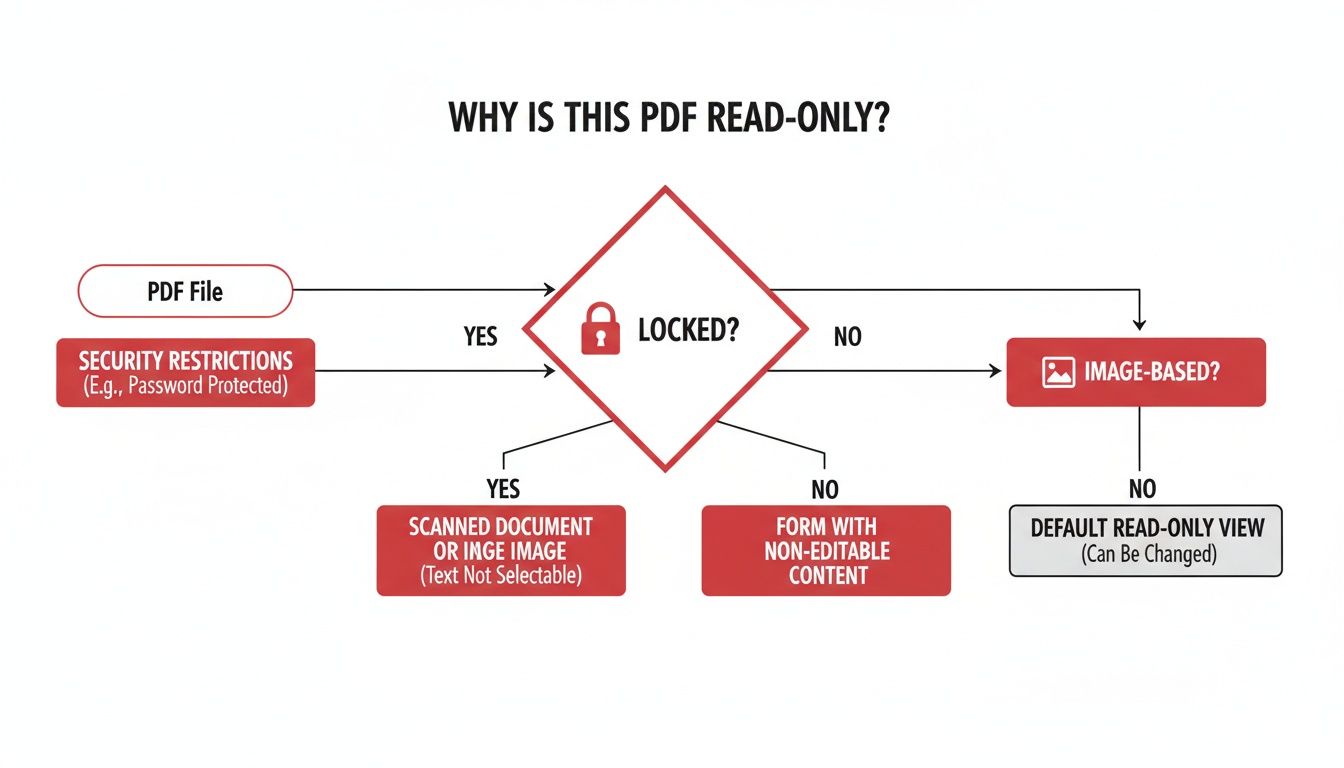
As you can see, the file is either locked with security settings or it’s basically just a picture of a document.
Removing Permission Restrictions
First, open the restricted PDF in Adobe Acrobat Pro. Head up to the File menu and click on Properties. This opens a new window. Look for the Security tab. You'll probably see that the "Security Method" is set to "Password Security."
Right next to that, you'll see a button that says Change Settings. Click it. Acrobat will then ask you for the owner password. Go ahead and type it in. Once you hit OK, all the security options will become active.
Now you have a couple of choices:
Wipe Out All Security: Just open the "Security Method" dropdown menu and switch it to No Security.
Tweak the Permissions: If you'd rather keep the password but loosen the rules, you can. For example, you can check the boxes to allow printing or commenting while still restricting other actions.
After you've made your selections, just save the document. The PDF is now unlocked and ready for you to edit. The demand for these kinds of tools is massive; the global PDF software market is projected to hit nearly USD 8.93 billion by 2033, driven by our constant need to edit files that were supposed to be "final."
Transforming Scanned PDFs with OCR
But what if the PDF isn't password-protected at all? Sometimes, the file is just a flat image—a scan of a paper document. This is where Acrobat's Optical Character Recognition (OCR) feature is an absolute lifesaver. OCR technology scans the image, figures out what the letters and words are, and turns the whole thing into real, editable text.
To get started, open your scanned PDF and find the Scan & OCR tool in the panel on the right. Acrobat is smart enough to see that the document is just an image and will prompt you to recognize the text.
Just click Recognize Text and let the software work its magic. After it processes the file, you’ll be able to select, copy, and edit the text just like you would in a normal document. For the best results, make sure your original scan is as clear and high-resolution as possible. A fuzzy scan will lead to a lot of typos and garbled text from the OCR process.
Clever Desktop Methods That Cost Nothing
You don’t always need to shell out for expensive software to get around a locked PDF. Some of the most effective solutions are probably already on your computer, completely free. These aren't complicated hacks, just clever ways to use common desktop applications to bypass those frustrating editing and printing restrictions.
A lot of people don't realize that Microsoft Word has become a surprisingly capable PDF editor. If you're dealing with a file that has permission restrictions (but isn't locked down with a password), Word can often open the document and convert it into an editable format, effectively stripping away the read-only limits.
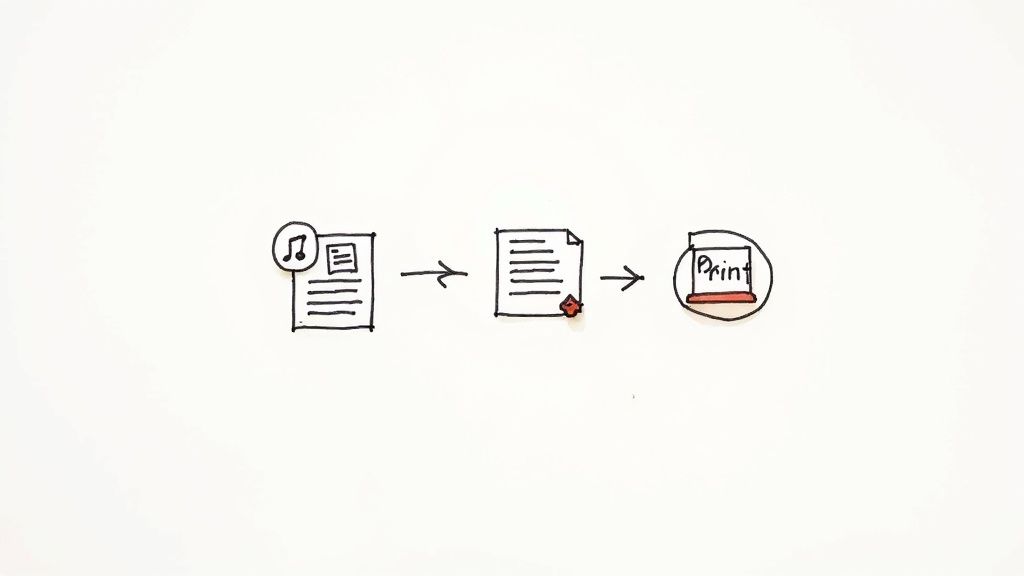
Unlocking a PDF with Microsoft Word
The process is refreshingly simple. Just fire up Microsoft Word, go to File > Open, and browse for your read-only PDF. Word will pop up a little message letting you know it's about to convert the PDF into an editable Word doc.
This conversion can take a moment, especially for larger, more complex files with a lot of images or funky layouts. Once it's done, you'll have a fully editable version right in front of you.
Pro Tip: The conversion isn't always perfect. Expect some minor formatting shifts, especially with things like tables or multi-column layouts. The key is to review the document carefully and make small adjustments to get it back to its original appearance before saving it as a new PDF.
This method is a lifesaver for documents where you just need to change some text, add comments, or fill out forms that were originally locked. If the Word conversion feels a bit clunky, you can always explore the tools available in Google Docs, which offers a similar PDF-to-editable-doc feature.
The "Print to PDF" Workaround
Another fantastic technique that costs nothing is what I call the "Print to PDF" trick. This method is incredibly effective for getting rid of restrictions that stop you from printing, copying text, or adding comments. It works by essentially creating a brand-new, unrestricted copy of the document.
The magic here is that when you "print" a file to a PDF driver, your computer generates a fresh document based on the visual output, leaving the old, annoying permission settings behind.
Here’s a simple way to do it using a web browser like Google Chrome or Microsoft Edge, since both have a built-in PDF printer:
Open the PDF in your browser. Just right-click your read-only PDF file, choose "Open with," and select your browser.
Bring up the Print Menu. Once the PDF is showing in the browser tab, hit Ctrl+P (on Windows) or Cmd+P (on Mac) to open the print dialog.
Change the destination. In the print settings, look for the "Destination" or "Printer" field. Click the dropdown and select "Save as PDF" or "Microsoft Print to PDF."
Save your new file. Click the "Save" button, and you’ll be prompted to choose a location and a name for your new, unlocked PDF.
The file you just saved is a clean version of the original. All the text and images will be there, but the restrictions on printing and copying will be gone. This little workaround is one of the quickest ways I know to regain control over a document without needing any special software.
Tapping Into Online Tools and Cloud Services
When you’re in a pinch and need to edit a read-only PDF without installing any new software, online services are your best friend. Plenty of free tools out there can strip away permission locks or convert image-heavy files into editable text with just a few clicks. They're incredibly handy, especially when you're not on your own computer.
It's no wonder these tools are so popular. PDFs are the backbone of modern business—in fact, 98% of businesses use them. With an estimated 2.5 trillion PDFs floating around the globe, it's clear why so many people run into roadblocks trying to modify them. You can dig into more PDF usage statistics on smallpdf.com if you're curious about the trends.
The Google Drive and Docs Trick
One of the most reliable and surprisingly effective methods uses a tool you probably already have: Google Drive. This approach is a lifesaver for scanned documents or image-based PDFs where you can't select any text. Google's built-in Optical Character Recognition (OCR) is impressively accurate and totally free.
The process is incredibly simple:
First, upload the PDF to your Google Drive account.
Once it's uploaded, right-click the file.
Hover your mouse over "Open with" and choose "Google Docs."
You'll see the option right in the context menu after you right-click the file.
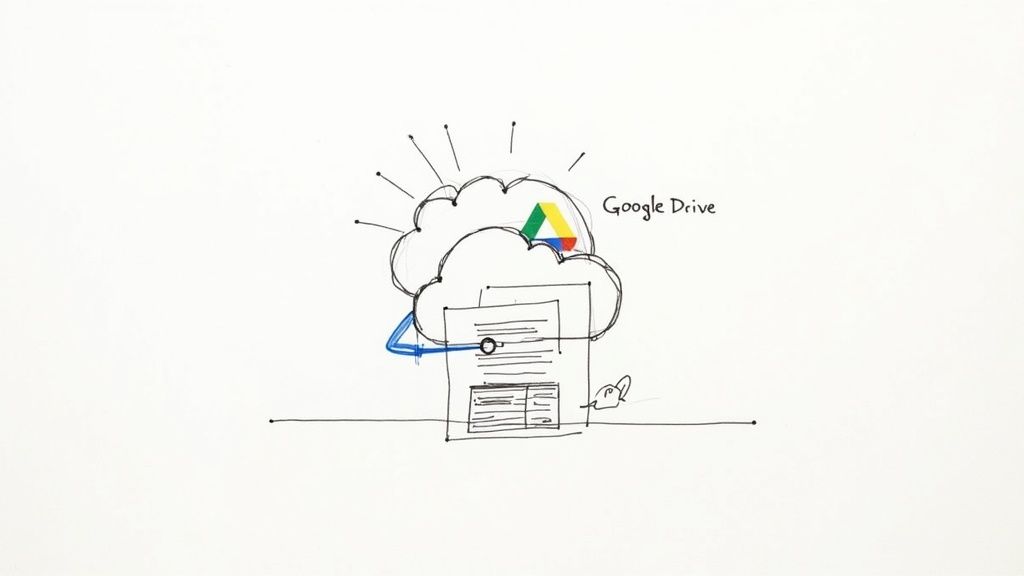
That's all it takes. Google automatically gets to work scanning the document, recognizing the text, and creating a brand new, fully editable Google Doc. The formatting might get a little wonky and need some tidying up, but all the text will be there, ready for you to edit, copy, or rework however you need.
Using Dedicated Online PDF Unlockers
If you're dealing with a permissions password rather than an image-based file, dedicated online unlockers are the way to go. These websites are built for one purpose: to remove the "owner" password that blocks you from editing, printing, or copying text. They are lightning-fast. Just upload your file, let the site work its magic, and download the unlocked version a few seconds later.
A quick word of warning: You should never upload sensitive or confidential documents to free online services. While they're convenient, you're essentially handing your data over to a third-party server, which opens the door to privacy and security risks. Stick to using these for non-sensitive files like public reports or general info sheets.
Many of these sites do more than just unlock files. For a deeper dive into a popular platform, you can check out our guide on the iLovePDF online toolset. Beyond editing, you can find other useful web-based tools, like an online PDF summarizer, which can help you quickly digest the key points of a long document. For non-confidential files, these services offer a fantastic mix of speed and power.
Navigating the Ethical and Legal Lines
Just because you can modify a read-only PDF doesn’t always mean you should. It’s one thing to know the technical tricks, but it’s another to understand where the ethical and legal boundaries are.
Crossing them can lead to serious trouble, from copyright violations to breaking professional codes of conduct. These tools are powerful, and with that power comes a responsibility to use them wisely.
Many PDFs are locked for good reason—they’re protecting someone’s hard work. Think about ebooks, commissioned research papers, or digital artwork. That content is the intellectual property of its creator. Modifying it without their go-ahead isn't just a technical tweak; it's a potential copyright infringement.
In a business setting, the stakes are even higher. Documents are often locked to maintain their integrity. Imagine altering an official financial report, a signed contract, or a company policy document. That kind of action could easily be seen as fraudulent or a direct breach of your employment agreement.
Understanding When It Is Acceptable
So, when is it okay to move forward? The answer usually comes down to two things: intent and ownership.
If you're the one who created the document and you've just forgotten the password, you're absolutely within your rights to unlock it. The same goes if you have explicit permission from the original creator to make edits.
Beyond that, there are plenty of legitimate personal use cases that are generally considered fine:
Personal Archiving: You might want to convert a scanned receipt or an online bill into an editable format so you can add notes for your own records.
Accessibility Needs: Someone using a screen reader might need to convert an image-based PDF into text just to make it accessible.
Private Study: Highlighting sections or adding personal notes to a research paper for your own educational use is a common and accepted practice.
The core principle here is that you're not trying to misrepresent the document, distribute it illegally, or pass off someone else’s work as your own.
When you modify a file for personal convenience or accessibility without redistributing it or affecting its legal standing, you are generally on safe ground. The ethical line is crossed when your edits deceive, misrepresent, or infringe on the rights of the original creator or stakeholders.
When to Stop and Reconsider
On the flip side, there are some clear red flags that should make you stop and think twice.
Altering any kind of legal document, like a lease or a will, without involving all the relevant parties is a major legal violation. Forging a signature or changing key terms in a business contract is another obvious no-go.
In any professional environment, your company's policy is king. Most organizations have strict rules about how official documents are handled. Bending those rules could put your job on the line and tarnish your professional reputation.
Before you modify anything work-related, it's always smart to check your company's guidelines or even consult a legal expert if you’re unsure. To get a feel for how these rules are structured, you can review official company terms and conditions, which often provide useful context.
The bottom line is simple: always act with integrity and respect intellectual property.
Common Questions About Modifying PDFs
When you're stuck trying to edit a read-only PDF, you're not alone. A few questions pop up again and again, and getting straight answers can save you from a lot of wasted time and frustration. Let's clear up some of the most common hurdles people face.
The biggest point of confusion is usually the type of lock you're dealing with. An owner password is all about permissions. You can open and read the file just fine, but you're blocked from editing, printing, or copying text. Think of it as a "look but don't touch" policy. A user password, on the other hand, is a full-blown encryption lock—you can't even open the document without it.
Are Online PDF Editors Safe To Use?
This is a big one, and the honest answer is: it really depends on what's in your document. For something non-sensitive, like a public report, a shareable checklist, or a recipe, online unlockers are fantastic. They're quick, easy, and get the job done in seconds without you having to install a thing.
However, a word of caution: never upload confidential or private documents to a free online tool. The moment you upload that file, you've lost control over where your data is going. It's now sitting on a third-party server, which opens up all sorts of potential privacy risks. For anything sensitive—contracts, financial records, personal ID—always stick to an offline, desktop solution.
The convenience of online tools comes with a trade-off in security. Always weigh the sensitivity of your data before uploading it anywhere. A data breach is far more inconvenient than spending a few minutes with a desktop app.
Why Does My Formatting Break After Conversion?
It's one of the most common frustrations: you convert your perfectly designed PDF into a Word document, and it comes out looking like a complete mess. This usually boils down to a few key culprits.
Complex Layouts: PDFs packed with multiple columns, intricate tables, or a dense mix of text and graphics are a nightmare for conversion tools. The software has to essentially guess how to rebuild those elements in a new format, and it often gets it wrong.
Font Mismatches: If the original PDF used fonts that aren't installed on your computer, the converter will substitute them with whatever it thinks is close. This can throw off all your spacing, alignment, and the overall professional look.
Image vs. Text: Sometimes, a converter's OCR (Optical Character Recognition) isn't perfect. It might misread certain letters or, worse, mistake entire blocks of text for an image, leaving you with garbled words and content you can't edit.
The best way to handle this is to go into it expecting to do a little cleanup. Once the conversion is done, plan on spending a few minutes manually adjusting the spacing, re-applying the correct fonts, and tweaking table borders. It’s an extra step, but it’s the only way to guarantee your final document looks just as good as the original.
Before we move on, let's consolidate some of these common issues into a quick-reference table.
Quick Answers to Your PDF Questions
Here’s a quick rundown of the most frequent questions we see and the direct answers to get you on your way.
Question | Answer |
|---|---|
Can I edit any PDF? | Not directly. You need to either remove the editing restrictions or convert the PDF into an editable format like a Word document. |
Is it legal to remove restrictions? | It depends. It's generally fine for personal use on documents you own or have the right to modify. It's illegal to bypass security on copyrighted or protected material you don't have rights to. |
Why can't I copy text from my PDF? | The file likely has an owner password applied, which sets permissions to prevent copying, editing, and printing. |
What's the safest way to unlock a PDF? | For sensitive documents, always use a trusted, offline desktop application like Adobe Acrobat Pro or a reputable free PDF editor. |
Will my formatting stay the same? | Unlikely, especially with complex layouts. Expect to do some manual cleanup and reformatting after converting a PDF to another file type. |
Hopefully, that table gives you a clear snapshot of the main challenges and solutions when dealing with stubborn PDFs.